
How-To: World of Warcraft auf CachyOS Link to heading
I’ve been hooked on World of Warcraft for a long time. Since I also stream the game on Twitch, I’ve so far only played and streamed on Windows 11.
I want to completely move away from Windows. I tried Pop_OS!, but unfortunately it didn’t satisfy me. Since I use CachyOS as my daily driver, I decided to install it on my gaming PC as well.
This how-to is about how to easily install World of Warcraft on CachyOS using Proton. In this how-to, I assume that someone has freshly installed CachyOS, so we’ll start with installing Steam.
Installing Steam and World of Warcraft Link to heading
Install Steam via the terminal with the following command:
sudo pacman -S steam
and now
steam
Now Battle.net (Windows) will be downloaded. To be safe, always download the latest version. -> Blizzard Store
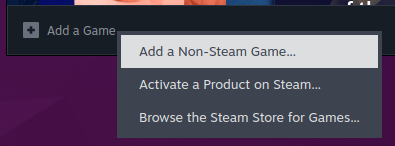
Open Steam and click at the bottom on Add a Game -> “Add a Non-Steam Game …”
After that, find the battle.net-setup.exe and add it.
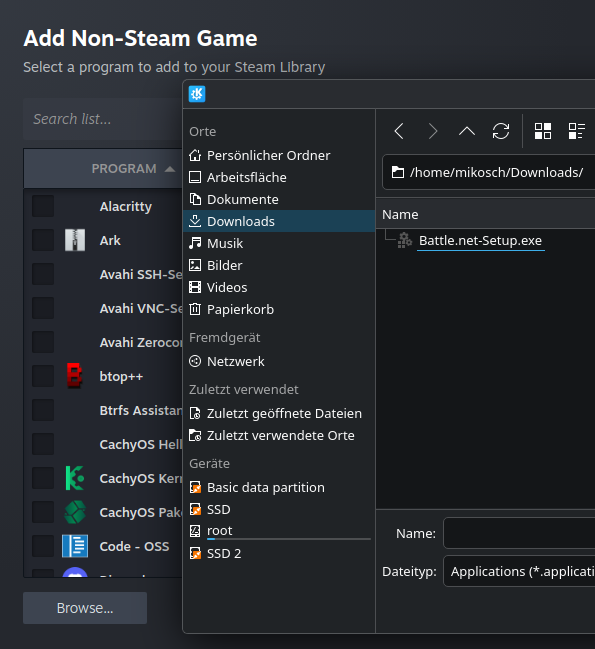
Then search in the Steam library for “battle.net” and right-click it. Under “Shortcut” you can now adjust the library entry. Rename it to “World of Warcraft”. If you care about having an icon and banner, you can find all the required graphics on SteamgridDB.
Now the most important step: Under “Shortcut” you have the setting “Compatibility”. Check “Force the use of a specific Steam Play compatibility tool” and select Proton 10.0-3 there. (At the time of writing, this was the only version that worked.)
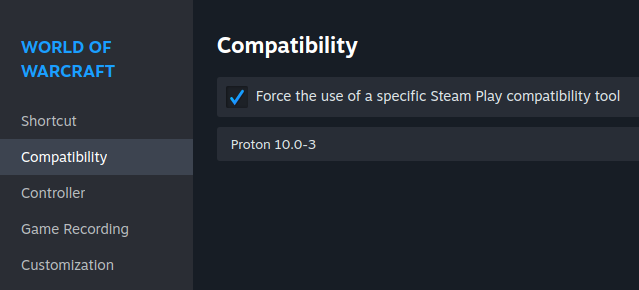
Now start “World of Warcraft” from the Steam library and follow the installation exactly the same way as if it were a Windows installation.
After logging in, you can install any version of WoW and play comfortably.
Troubleshoot Link to heading
- If nothing happens when you start World of Warcraft from the Steam library, try another Proton version.
…is continuously being expanded.
I hope this short and concise guide was able to help you. If you have any questions, you can reach out to me via Contact me and I’ll try to help.